By Philippe Humeau · Updated [10 November 2026]
Most next-generation firewalls ship with a threat-feed feature nobody turns on. The slot is there, it costs nothing, and in a lot of networks it’s empty (or filled with a free list nobody has looked at in two years 😅).
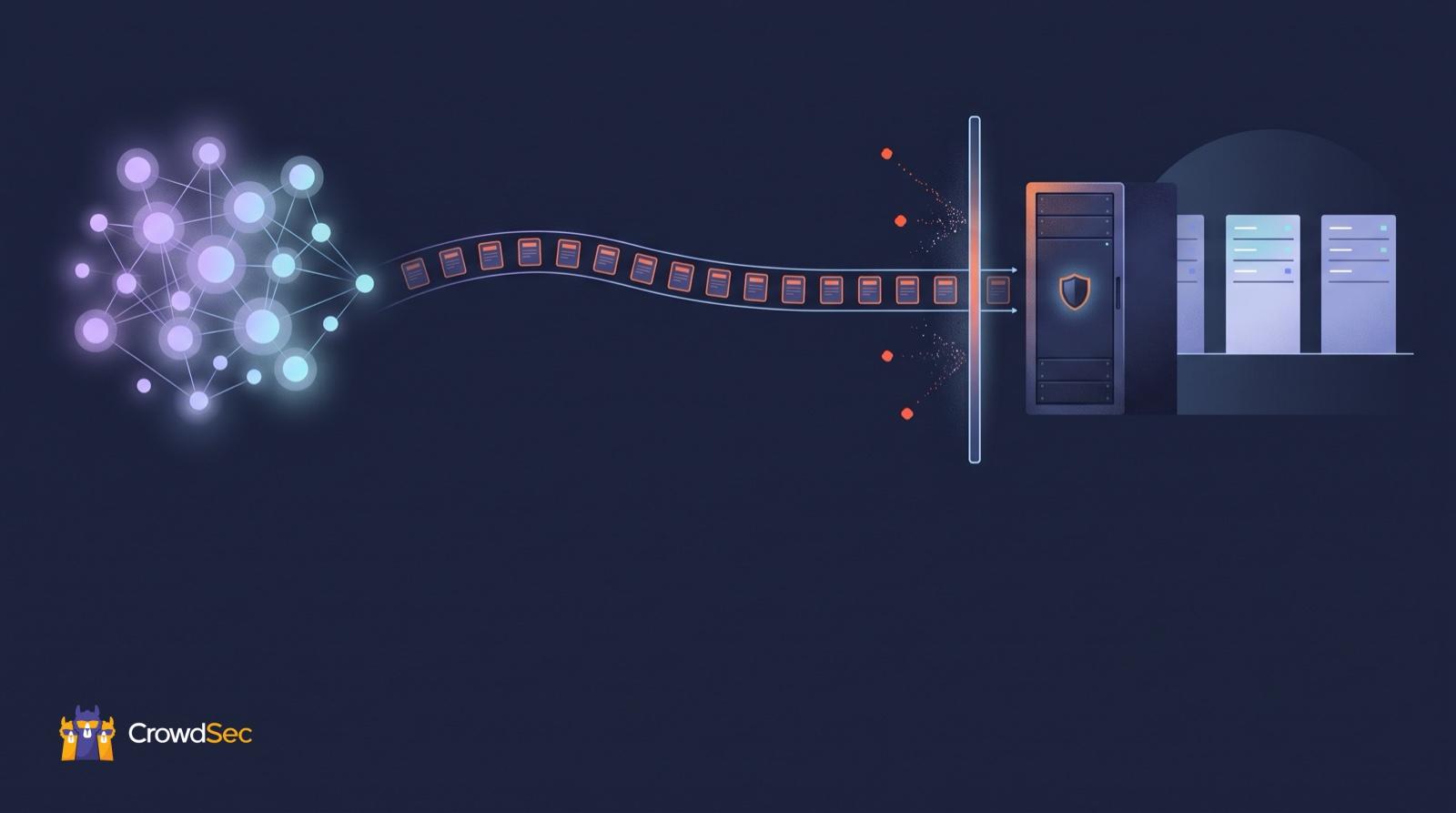
Filling it is simple: use your firewall’s “external list” feature (Palo Alto External Dynamic Lists, FortiGate threat feeds, Check Point IoC feeds, pfSense URL Table aliases) and point it at an HTTPS URL that serves a list of malicious IPs. The firewall downloads the list on a schedule, and a deny rule blocks every IP on it. With CrowdSec Blocklists, there’s no agent to install: you create an endpoint in the CrowdSec Console, paste its URL into the firewall, and it refreshes on its own.
In short:
- Every major firewall can pull an external IP list over HTTPS: all you need is a feed URL and a deny rule.
- The vendor matters less than four settings: refresh rate, list size, TLS trust and where the rule sits.
- Start with a broad, curated list of IPs attacking right now, then add lists for your industry and exposed services.
What is a threat intelligence feed for a firewall?
A threat intelligence feed for a firewall is a list of IP addresses (sometimes ranges, domains or URLs) known to be malicious, published at a URL that the firewall downloads and refreshes automatically. Outside knowledge about attackers becomes an enforced block, and nobody has to edit rules by hand.
The trouble is that “threat feed” covers very different things. Some feeds are raw dumps of indicators collected from honeypots or abuse reports. Others are curated: each IP is checked, scored and removed when it stops attacking. On a firewall, that difference is everything, because anything on the list gets blocked. One wrong entry and a customer, a partner or your payment provider can’t reach you. (There’s more on that trade-off in the 5 misconceptions of threat intelligence blocklists.)
| Raw threat feed | Curated IP blocklist | |
|---|---|---|
| What’s in it | Every IP reported, often with old entries | IPs confirmed by several independent sources, still active |
| False positives | Your problem to filter | Removed before publication |
| Old entries | Stay until someone cleans up | Removed automatically when reports stop |
| Best use | Enrichment, hunting, investigation | Blocking at the firewall |
CrowdSec Blocklists are curated IP threat feeds of the second kind: built to be blocked on directly.
How do you add a threat feed to any firewall? (6 steps)
The method is the same on every firewall that can pull an external list: create a feed URL, give it to the firewall, reference it in a deny rule. Let’s walk through it with CrowdSec Blocklists (full docs).
- Create an integration in the CrowdSec Console. Go to Blocklist → Integrations, choose your firewall vendor (or Raw IP List for anything else) and click Connect. A free Console account is enough.
- Name it and set the size options. Turn on IP aggregation to merge IPs into CIDR ranges and keep the list short. Leave the pull limit at its default (10,000 IPs) unless your firewall can take more.
- Copy the credentials. You get an HTTPS endpoint plus a username and password (Basic Auth). They are shown only once, so store them somewhere safe; if you lose them, regenerate them from the integration page.
- Subscribe the integration to blocklists. Pick one or more lists. The endpoint serves them merged and deduplicated.
- Point your firewall at the endpoint. Create the external list object in your firewall (vendor sections below), with the URL, the credentials and a refresh interval that matches your plan.
- Add a deny rule and check it. Reference the list in a block rule. Then test the endpoint from any machine:
curl -u 'USERNAME:PASSWORD' https://admin.api.crowdsec.net/v1/integrations/<ID>/contentYou should get back a list of IPs. If you do, the Console side is done and anything that fails from here is on the firewall side.
The Console part takes a couple of minutes. The firewall part depends on your vendor and, let’s be honest, on your change process.
Where is the feed setting in Palo Alto, FortiGate, Check Point and pfSense?
Every vendor gives the feature its own name, and that name is what you’ll be searching for in the admin interface and in the vendor’s docs.
| Firewall | Feature name | CrowdSec setup guide |
|---|---|---|
| Palo Alto Networks (PAN-OS) | External Dynamic Lists (EDL) | docs: Palo Alto |
| Fortinet FortiGate | IP address Threat Feeds (External Connectors) | docs: Fortinet |
| Check Point | Custom Intelligence (IoC) Feeds | docs: Check Point |
| pfSense | URL Table (IPs) aliases | docs: pfSense |
| OPNsense | URL Table (IPs) aliases | docs: OPNsense |
| Cisco | Security Intelligence feeds | docs: Cisco |
| Juniper | Security Dynamic Address feeds | docs: Juniper |
| Sophos | Third-Party Threat Feeds | docs: Sophos |
| F5 BIG-IP | External IP blocklist / feed lists | docs: F5 |
| MikroTik | IP blocklist ingestion | docs: MikroTik |
| Anything that speaks HTTP | One IP per line | docs: Raw IP List |
| Cloudflare, AWS WAF | No list ingestion: use a remediation component | docs: Remediation Component |
pfSense and OPNsense: URL Table (IPs) alias
On pfSense, create a URL Table (IPs) alias with a 1-day update frequency and put the credentials straight in the URL:
https://<username>:<password>@admin.api.crowdsec.net/v1/integrations/<integration_id>/contentCheck that the alias resolves, then create a firewall rule that blocks traffic from the alias. OPNsense uses the same alias type. Step-by-step with screenshots: pfSense and OPNsense.
Check Point: Custom Intelligence (IoC) Feeds
Check Point is the odd one out: the feed goes into the Threat Prevention engine instead of the access policy. Open the gateway in Gateways and Servers, enable Threat Prevention (Custom) with at least Anti-Bot or Anti-Virus active, then under Security policies add a New IOC Feed with the endpoint URL and credentials. Choose the Check Point feed format and click Test Feed before saving. Details: Check Point integration and Check Point’s own article sk132193.
Palo Alto and FortiGate
On Palo Alto, add an External Dynamic List under Objects → External Dynamic Lists, with the credentials in the URL and an update frequency that matches your plan. Then create a rule under Policies → Security with the list as the source address and the action Drop, logging on (setup). On FortiGate, it’s an IP address threat feed created under External Connectors, used as an address in a firewall policy (setup). Dedicated step-by-step guides for both are on the way.
What should you decide before you switch the feed on?
Four settings decide whether the feed runs quietly for years or breaks on day two: refresh interval, list size, TLS trust and rule placement.
How often should the firewall refresh the feed? Match the interval to your plan: once every 24 hours on the free Community plan, every hour on paid plans. Pull more often than your plan allows and you get an HTTP 429 error, while the firewall keeps its old copy. Attackers rotate IPs quickly, so the fresher the list, the more of today’s attackers it blocks.
How big can the list be? Two limits apply. Your firewall has a maximum number of entries per external list, which depends on the model (check its documentation). And without compression, responses over about 5 MB are cut off, which is roughly 350,000 IPv4 entries in plain-text format. Most firewalls handle this fine, but if the list looks shorter than expected, enable compression or set a pull limit. IP aggregation (step 2) helps with both.
Does the firewall trust the certificate? This is the sneaky one. The endpoint uses a certificate signed by Amazon Root CA 1, and some appliances don’t ship it in their trust store and fail silently. If curl works but the firewall can’t pull, import the Amazon Root CA 1 certificate and attach it to the feed.
Where should the block rule go? On inbound traffic only. Put it near the top of your inbound rules, before the rules that allow traffic to exposed services, so known attackers never get to them.
Which threat feeds should you start with?
Start with one broad list of IPs that are attacking right now, then add lists that match who you are and what you expose. Our rule of thumb: each extra list has to catch something the previous ones miss.
- A broad, curated list first. The CrowdSec Intelligence Blocklist (Platinum tier) is the flagship: IPs that are aggressive across the whole CrowdSec network right now. Pair it with the High Background Noise list (also Platinum) to drop the mass scanners that fill your logs.
- Then your industry or country. We build lists of IPs attacking a specific sector (banking and insurance, healthcare, retail and e-commerce, public sector, education, hosting, MSSP…) or a specific country. These catch the bad guys who pick their targets, on top of the loudest ones.
- Then your exposed services. Running WordPress, a mail server or a public API? Add the matching behaviour list (WordPress, mail servers, brute force, HTTP exploitation, L7 DDoS), or an actor list such as curated proxy and VPN exits or botnets.
On the free Community plan you get 3 blocklists, counted across all your integrations and Security Engines, picked from the free lists in the catalogue: third-party lists such as the Firehol ones, and lists of IPs exploiting a specific CVE (React2Shell or PHP-CGI, for example). Start with the ones that match what you run. Paid plans remove the limit and add the Premium and Platinum lists. Each list page in the Console catalogue shows its exclusivity (IPs no other list has) and its overlap with the Intelligence list. In layman’s terms: it tells you whether a new list adds anything before you spend a slot on it.
Where does CrowdSec fit?
CrowdSec Blocklists are curated IP threat feeds built from production telemetry: more than 300,000 active Security Engines send more than 60 million signals a day. Those signals come from real servers that attackers target for money, instead of honeypots, so the lists include targeted attacks as well as background noise (why that matters).
Three things make them safe to block on directly:
- Consensus. An IP is listed only after reports from many independent machines across many networks, from unmodified detection scenarios.
- Exclusions. Safe and benign IPs (DNS resolvers, CDNs, public scanners) are kept out.
- Expiry. IPs drop off automatically when reports stop, so the list doesn’t rot.
That curation is why we guarantee zero false positives on CrowdSec-curated lists. It also makes them early: we flag malicious IPs 1 to 10 weeks before other vendors, and 36% of the IPs on our high-threat list are exclusive to CrowdSec, compared with all other CTI sources. More on the method on our data page.
Trinaps, a managed security provider, summed up what that looks like on a real firewall: “11M attempts blocked by Palo Alto, 66M attempts blocked by CrowdSec with zero false positives” (their story).
Does a blocklist stop everything? No. It stops IPs that have already attacked someone. A first-time attacker on a clean IP gets through, and so does an attack on a vulnerability you haven’t patched. Keep your patching, your WAF and your vendor’s own feeds: a curated list removes the known noise so they have less to deal with. One more caveat: the zero-false-positive guarantee covers CrowdSec-curated lists only, and the third-party lists also available in the catalogue are outside it.
How do you try it on your own firewall?
Create a free CrowdSec Console account, add a blocklist integration for your firewall and subscribe it to a list: the IPs show up in the endpoint within minutes.
- Start here: create a blocklist integration in the CrowdSec Console
- Compare the lists and plans on the CrowdSec Blocklists page
- Follow the integration docs for your firewall
Running a firewall that isn’t in the table, or stuck on one that is? Drop a message on our Discourse or stop by our Discord and let us know which integration should come next!
FAQ
Is a threat intelligence feed the same as a blocklist? Not always. A threat intelligence feed is any stream of indicators (IPs, domains, file hashes), often meant for analysis. A blocklist is a feed curated to be blocked on directly. CrowdSec Blocklists are IP threat feeds of that second kind: every IP is vetted and expires when it stops attacking.
Do I need to install an agent to use CrowdSec Blocklists on a firewall? No. The firewall pulls the list from a hosted HTTPS endpoint with Basic Auth, so nothing is installed on the firewall or your servers. You can also run the open-source CrowdSec Security Engine on your servers, which detects attacks in your own logs and applies the same lists locally.
How often is a CrowdSec blocklist updated? CrowdSec updates its blocklists several times a day. Your firewall decides when to pull: once every 24 hours on the free Community plan, every hour on paid plans. Pulling faster than your plan allows returns HTTP 429.
Can I use a threat feed alongside my firewall vendor’s own feeds? Yes. Firewalls accept several external lists side by side, and a vendor feed (FortiGuard, Palo Alto’s built-in lists, Check Point ThreatCloud) and a CrowdSec list catch different things. The overlap figures in the CrowdSec Console show how much each list adds.
Why does my firewall fail to download the feed? Usually one of three things: wrong credentials (test with curl), a missing Amazon Root CA 1 certificate in the firewall’s trust store, or pulling more often than your plan allows (HTTP 429). A list that looks too short usually means the response was truncated: enable compression or set a pull limit.
Is there a free threat intelligence feed for firewalls? Yes. The CrowdSec Community plan is free and lets you use 3 blocklists, including free and third-party lists, refreshed once a day. Paid plans add hourly refresh, unlimited lists and the Premium and Platinum lists (pricing).
—
About the author: Philippe Humeau is the CEO of CrowdSec. CrowdSec is free because we don’t sell our users. We sell the attackers, as blocklists you can subscribe to here. Philippe Humeau on LinkedIn
Sources
- CrowdSec docs, Blocklist integrations: https://docs.crowdsec.net/u/integrations/intro/ (read 2026-10-20)
- CrowdSec docs, Blocklists tiers and zero false positives: https://docs.crowdsec.net/u/blocklists/intro/
- CrowdSec docs, pfSense and Check Point integrations: https://docs.crowdsec.net/u/integrations/pfsense/ · https://docs.crowdsec.net/u/integrations/checkpoint/
- Check Point, Custom Intelligence (IoC) Feeds: https://support.checkpoint.com/results/sk/sk132193
- Amazon Trust Services repository: https://www.amazontrust.com/repository/