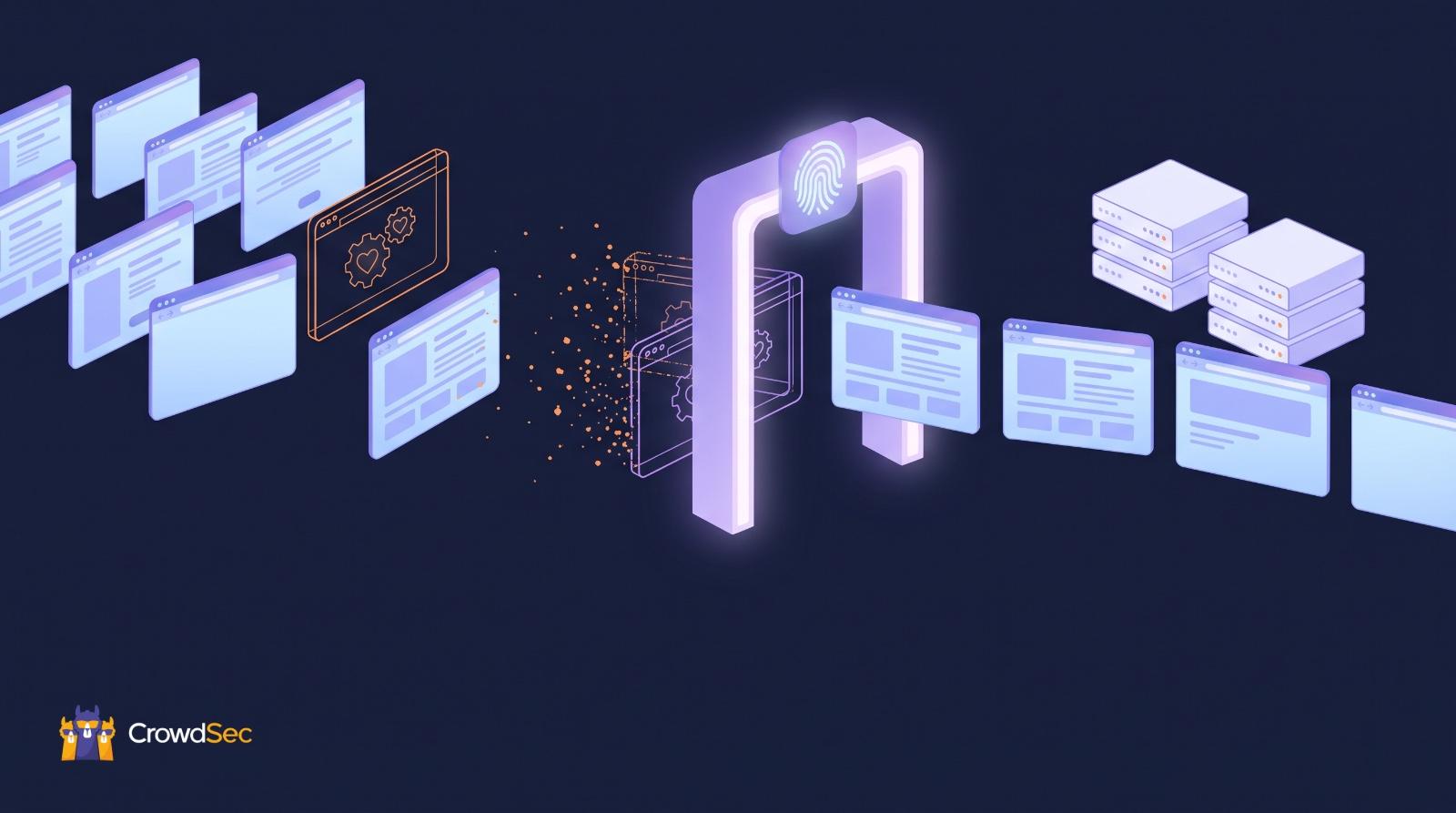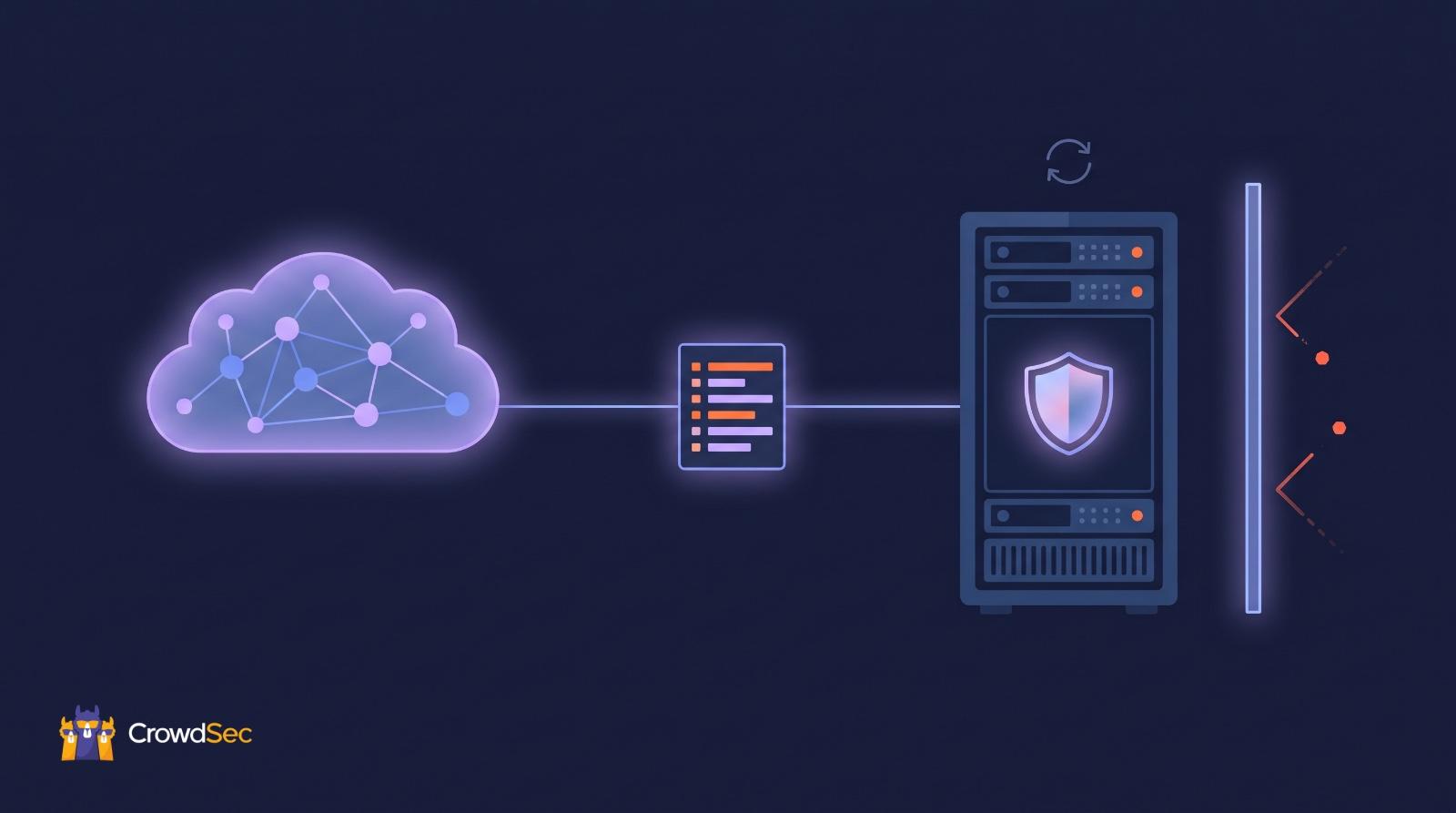
If you run a Palo Alto firewall, adding a threat feed is easier than it sounds: the firewall already has a feature built for it, the External Dynamic List (EDL). You give the firewall the URL of a list of malicious IPs, it downloads the list on a schedule, and a Drop rule blocks anything on it. With CrowdSec Blocklists, the URL comes from the CrowdSec Console and there’s nothing to install.
Two settings trip people up. PAN-OS checks for updates every five minutes by default, but the free CrowdSec plan allows one pull a day, so switch it to Daily. And Palo Alto caps how many IPs it will take: 50,000 across all your lists on most models, 150,000 on the PA-3200, PA-5200 and PA-7000 Series.
Never set up a threat feed before? This guide covers the basics for any firewall.
What is a Palo Alto External Dynamic List?
A Palo Alto External Dynamic List (EDL) is a text file on a web server that the firewall downloads on a schedule and uses in its security rules. An EDL of type IP List holds one IP address, range or subnet per line, and PAN-OS treats the whole list as a single address object, so one rule covers every IP on it.
When the list changes, the firewall picks up the new entries at the next check, with no commit needed. In other words, an EDL is how a Palo Alto firewall reads a blocklist, and CrowdSec serves its blocklists in exactly that plain-text format.
How do you add a CrowdSec blocklist as a Palo Alto EDL?
You add a CrowdSec blocklist to a Palo Alto firewall in six steps: two in the CrowdSec Console, four on the firewall. All you need is a CrowdSec Console account (the free one works) and admin access to the firewall.
- Create the integration (Console).
- In the CrowdSec Console, go to Blocklist > Integrations.
- Pick Palo Alto and click Connect.
- Turn on IP aggregation. It merges IPs into ranges and keeps the list short.
- Leave the pull limit at its default of 10,000 IPs, which works on any model.
- Save your credentials and pick your lists (Console).
- Copy the URL, username and password somewhere safe, like your password manager. You’ll see them once, and only once. If you lose them you can regenerate them, but then update the firewall too, or it stops enforcing the list.
- Subscribe the integration to the blocklists you want. The blocklist catalog explains how they’re organized.
- Add a certificate profile (firewall). Skip this step if you already have one with Amazon Root CA 1.
- Download Amazon Root CA 1.
- Import it under Device > Certificate Management > Certificates.
- Create a profile under Device > Certificate Management > Certificate Profile, with that certificate as its CA.
- Use this same profile on every EDL that points to CrowdSec. Palo Alto counts lists with the same URL but different profiles as separate EDLs, and a firewall takes 30 at most.
- Create the EDL (firewall).
- Open Objects > External Dynamic Lists and click Add.
- Fill in the settings below.
- Put the username and password in Palo Alto’s Client Authentication fields rather than in the URL, so the password stays out of the Source field.
| Setting | Value | |—|—| | Name | crowdsec-blocklist (the commands in this guide use this name) | | Type | IP List | | Source | https://admin.api.crowdsec.net/v1/integrations/<INTEGRATION_ID>/content | | Certificate Profile | The profile from step 3 | | Client Authentication | The username and password from step 2 | | Check for updates | Daily on the free tier, Hourly on paid plans |
- Commit and check that it worked (firewall).
- Commit. The firewall downloads the list right after.
- Skip the Test Source URL button: it doesn’t work on lists that need a login.
- Run this in the CLI instead. You should see your IPs (if not, see the troubleshooting table below):
“ request system external-list show type ip name crowdsec-blocklist “
- Add the Drop rule (firewall).
- In Policies > Security, create a rule.
- Set the source zone to your internet-facing zone (often named untrust) and the source address to the EDL. Leave everything else at any.
- Set the action to Drop and turn on logging.
- Move the rule above your inbound allow rules. PAN-OS stops at the first rule that matches, so a Drop rule below an allow rule never fires.
- Commit, and you’re done.
Want to see the Console screens? They’re in our Palo Alto integration docs.
What update interval should a Palo Alto EDL use?
Set a CrowdSec EDL to Daily on the free tier and Hourly on paid plans, as the CrowdSec docs recommend. PAN-OS checks every five minutes by default, far more often than the free tier allows. When that happens, the endpoint answers HTTP 429 and the firewall keeps using its last list until a pull goes through.
How many IPs can a Palo Alto EDL hold?
A Palo Alto firewall accepts 50,000 IPs from external dynamic lists on most models, and 150,000 on the PA-3200, PA-5200 and PA-7000 Series (Palo Alto). That’s fewer than many people expect, and it’s a total for every IP list your policies use, not a number per list. The firewall skips anything over the limit and logs a syslog message. Palo Alto’s own built-in lists don’t count.
So before you raise the CrowdSec pull limit, check what your other lists already use. Objects > External Dynamic Lists > List Capacities shows you.
Why is my Palo Alto EDL not working?
A Palo Alto EDL usually fails for one of five reasons: credentials, the update interval, the certificate, the network path or the rule order.
| What you see | What to do |
|---|---|
| Blocking stopped after you changed credentials | Update the EDL as soon as you regenerate credentials in the Console |
| HTTP 429 in the system log | You’re checking too often for your plan: set Daily on the free tier |
| Certificate error | Import Amazon Root CA 1 into the certificate profile |
| The firewall can’t reach the server | EDLs go out through the management interface by default: give it DNS and HTTPS, or change the EDL service route |
| Listed IPs still get through | Move the rule above your allow rules |
The first one is worth remembering. If the firewall can’t log in, it stops using the list altogether, so new credentials in the Console without the same change on the firewall switch your blocking off.
Need the list right now? request system external-list refresh type ip name crowdsec-blocklist downloads it without waiting. On the free tier, that counts as your pull for the day.
Where does CrowdSec fit?
CrowdSec Blocklists are curated IP threat feeds, made to block on directly. More than 300,000 active Security Engines send more than 60 million signals a day, and an IP only makes it onto a list once many independent machines have reported it (how we build the lists). You can start for free: the free tier includes 3 blocklists, updated once a day. Paid plans update every hour, let you add as many lists as you need and unlock our most curated ones (compare plans).
A blocklist only catches IPs that have already attacked someone, so keep patching and keep Palo Alto’s threat prevention on. (More on what blocklists can and can’t do in 5 misconceptions about threat intelligence blocklists.)
Wondering why a particular IP ended up on the list? Look it up with CrowdSec IP reputation to see what it’s been doing.
You can create a free blocklist integration in a couple of minutes, or compare the lists first.
FAQ
Is there a free threat feed for Palo Alto firewalls? Yes. CrowdSec’s free tier gives you 3 blocklists, updated once a day, chosen from our free lists and the free third-party lists in the catalog.
Can I block the IPs exploiting a specific CVE? Yes, with the Live Exploit Tracker. You can subscribe your firewall to a CVE, or to a whole vendor, and get the IPs exploiting it as a list Palo Alto can read, to block them while you patch.
Do I need to install anything? Nothing. EDLs are built into PAN-OS, and the firewall fetches the list over HTTPS by itself.
Do I need to commit every time the list changes? No. PAN-OS picks up new entries at each check on its own. You only commit when you create or change the EDL or the rule.
Can I use a CrowdSec EDL alongside Palo Alto’s built-in lists? Yes. With a Threat Prevention license, PAN-OS comes with predefined IP lists (known malicious IPs, bulletproof hosting providers, high-risk IPs), and they don’t count toward the EDL limit. A CrowdSec list adds IPs reported by a different network, and the overlap figures in the CrowdSec Console show how much each list adds.
Can I push the EDL from Panorama? Yes. Create the EDL and the Drop rule in a device group and push them as usual. Each firewall then downloads the list itself, and several firewalls can pull the same CrowdSec endpoint in parallel, so one integration serves them all. Test Source URL isn’t available in Panorama, so check the entries on a firewall with the CLI command from step 5.
What happens if the firewall can’t reach CrowdSec? It keeps blocking with the last list it downloaded, even after a reboot, until the connection is back (Palo Alto).
—
About the author: Philippe Humeau is the CEO of CrowdSec. CrowdSec is free because we don’t sell our users. We sell the attackers, as blocklists you can subscribe to here. Philippe Humeau on LinkedIn
Sources
- CrowdSec docs, Palo Alto integration: https://docs.crowdsec.net/u/integrations/paloalto/ (read 2026-11-10)
- CrowdSec docs, Blocklist integrations: https://docs.crowdsec.net/u/integrations/intro/ (read 2026-11-06)
- Palo Alto Networks, Configure the firewall to access an external dynamic list: https://docs.paloaltonetworks.com/network-security/security-policy/administration/objects/external-dynamic-lists/configure-the-firewall-to-access-an-external-dynamic-list (read 2026-11-10)
- Palo Alto Networks, Uses for external dynamic lists in policy: https://docs.paloaltonetworks.com/network-security/security-policy/administration/objects/external-dynamic-lists/use-an-external-dynamic-list-in-policy (read 2026-11-10)
- Palo Alto Networks, Policy Object: External Dynamic Lists (“Check for updates” default: every five minutes): https://docs.paloaltonetworks.com/network-security/security-policy/administration/objects/external-dynamic-lists (read 2026-11-11)
- Amazon Trust Services repository: https://www.amazontrust.com/repository/